 GlirOS
Video, sound and pictures
Media Studio
Edit video, sound and pictures on your own device: ask in the chat, or do it by hand in Media Studio. Your original files are never changed.
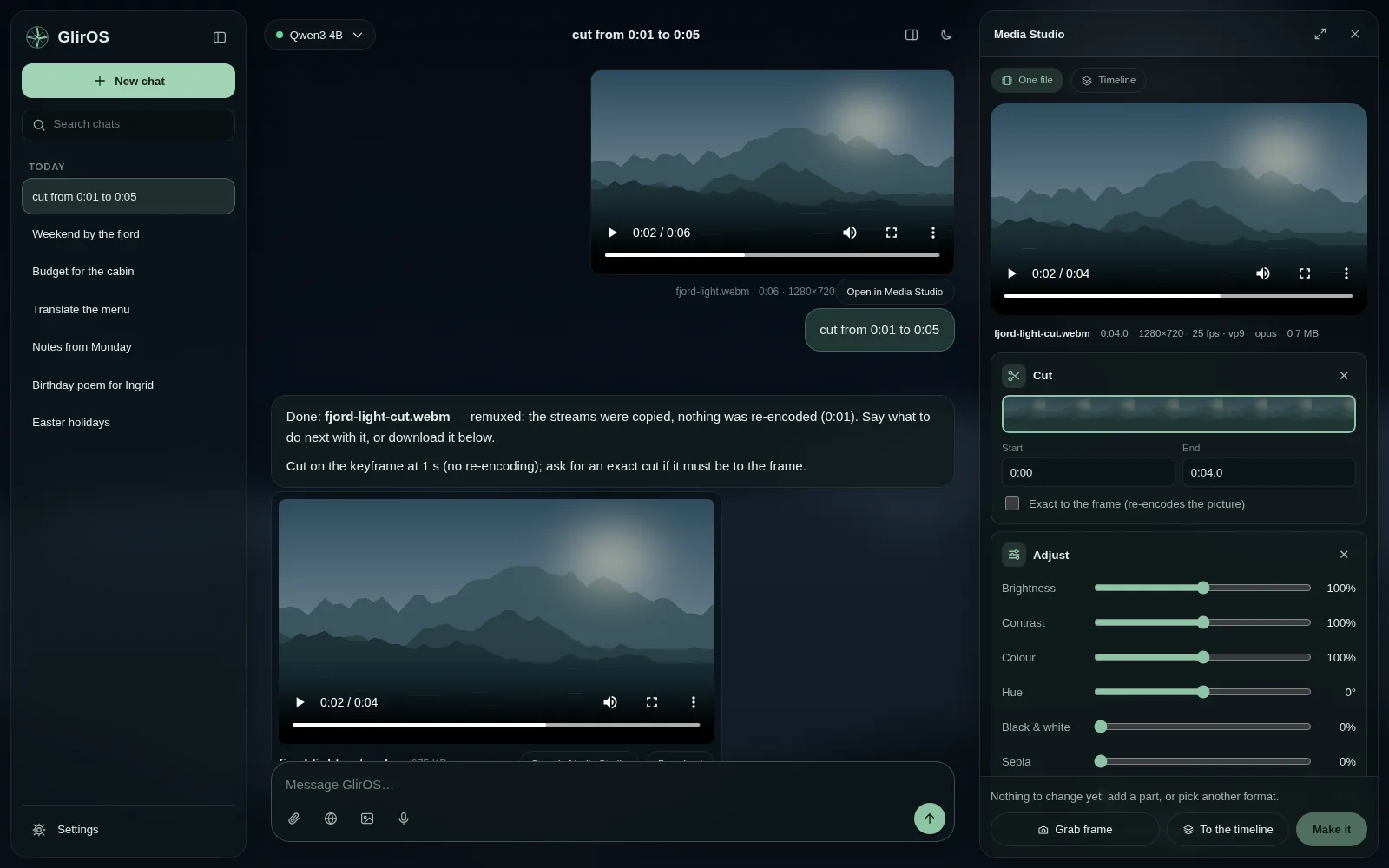
Just ask in the chat
Add a video or sound file and say what you want: “cut from 0:10 to 0:40”, “convert to mp4”, “extract the sound as mp3”, “compress to 25 MB”, “make it warmer”. GlirOS's own media tools do it, without waiting for the AI model, and put the new file under the answer with Open in Media Studio and Download.
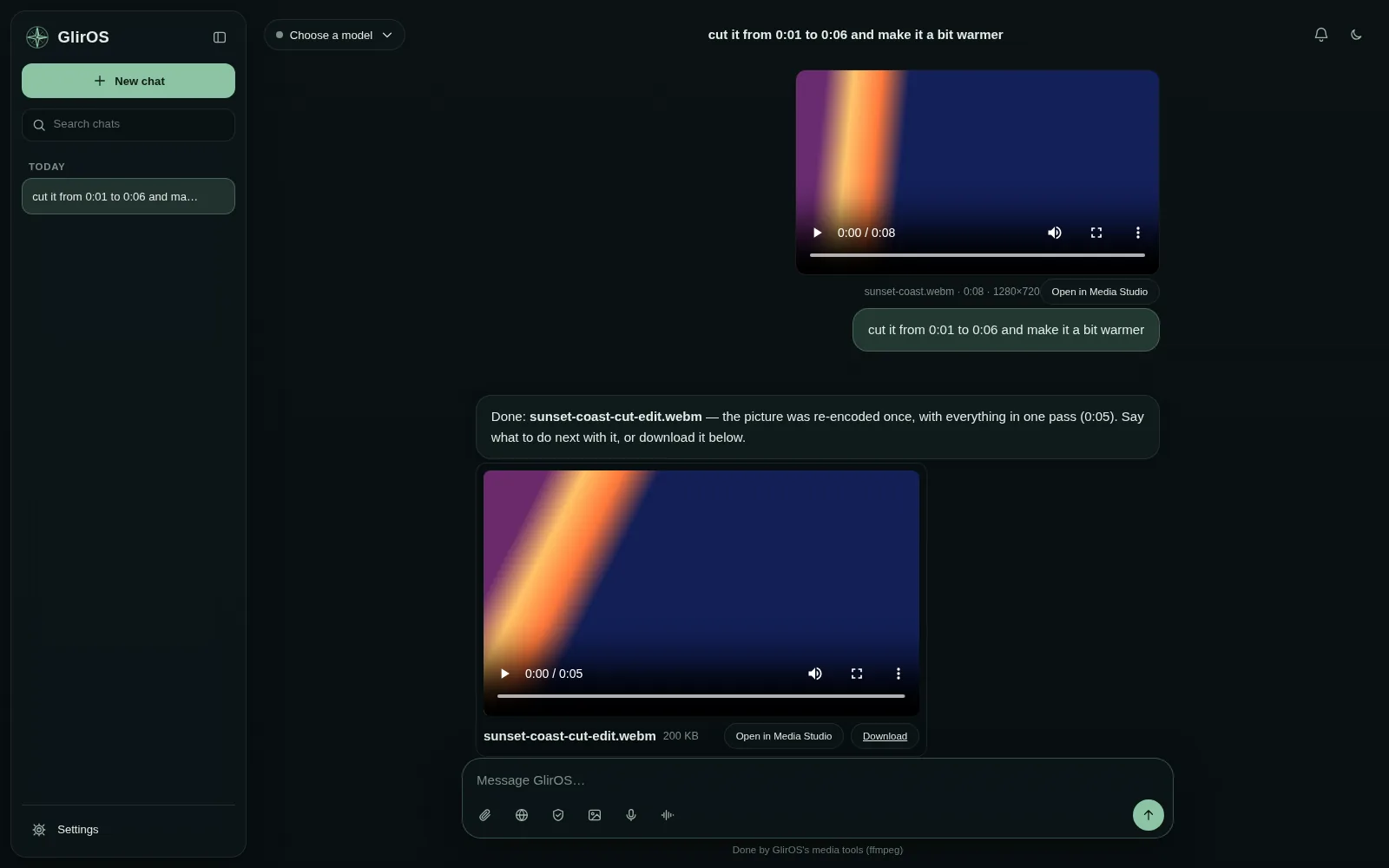
One file or a whole timeline
Media Studio opens beside the chat or fills the screen. One file is for a single clip or picture: cut, crop, turn, adjust and save. Timeline is for a whole video: the timeline across the bottom, and the chosen block's settings beside the picture.
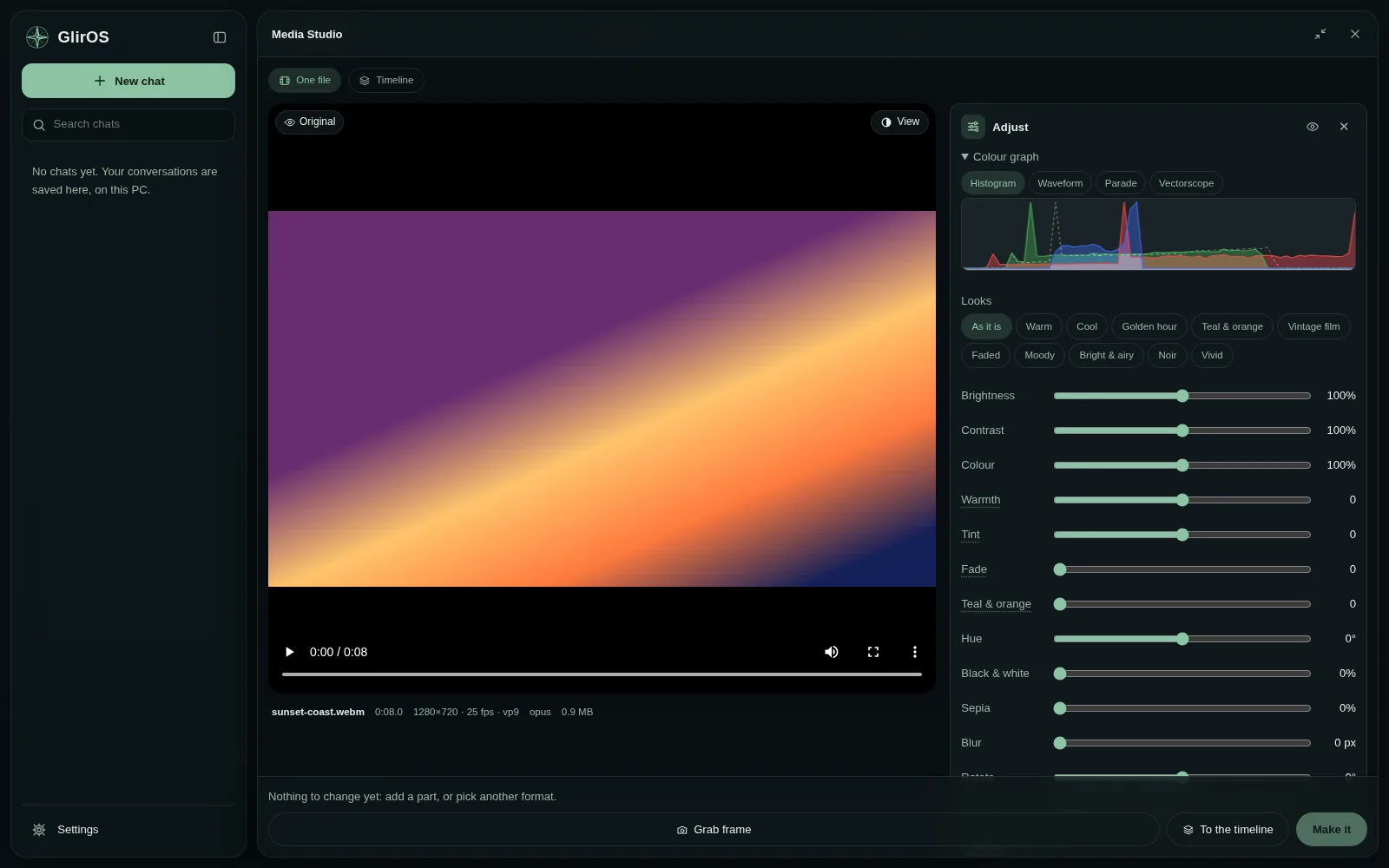
A timeline for whole videos
Join clips and pictures one after another with crossfades, on four layer lines: a logo or a watermark on top, music under it. Add subtitles from the chat, from an SRT or VTT file, or from what is said in the clip, written down on your device. Every line is a block you can move and edit, with Undo and Redo.
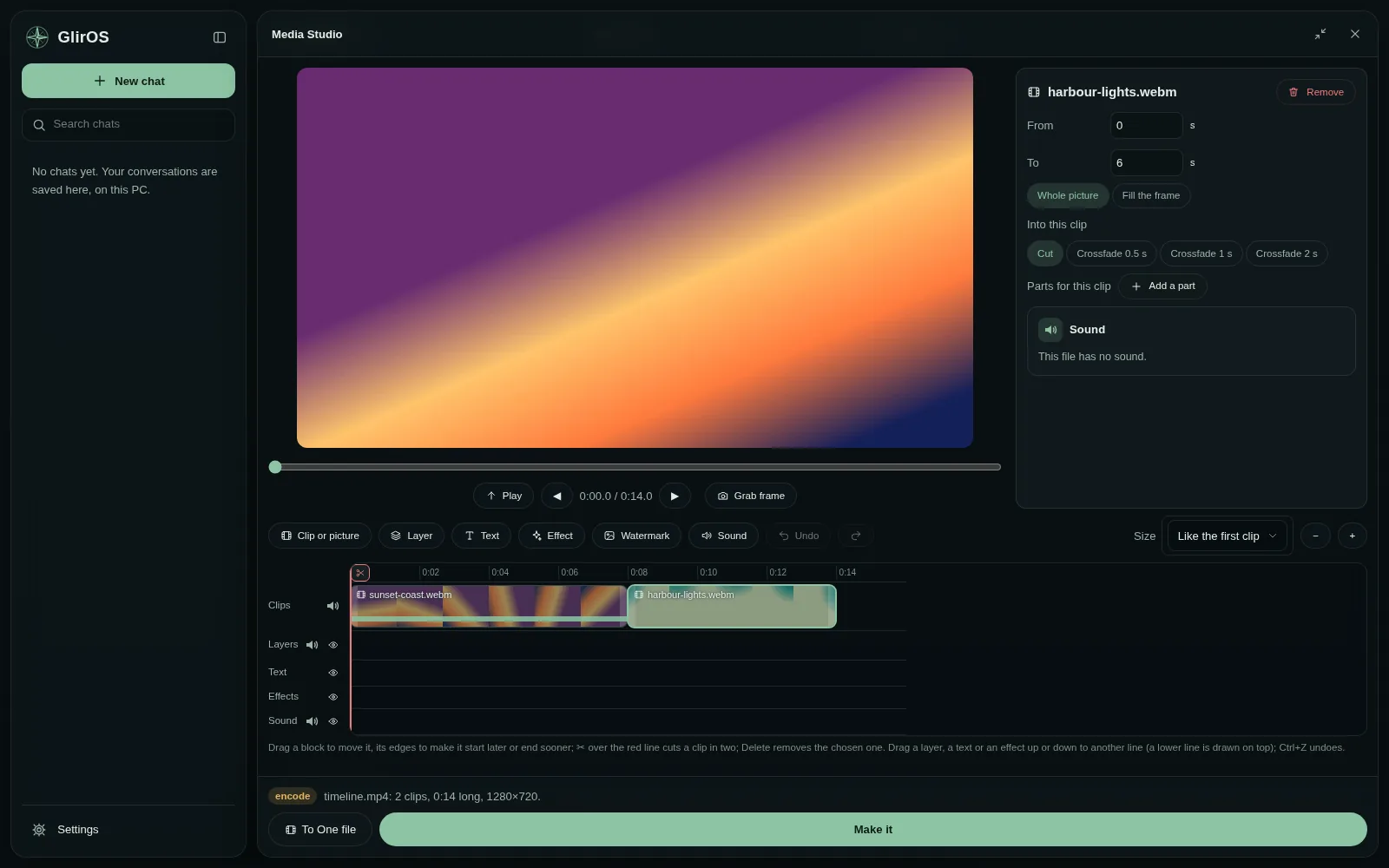
Colour and look
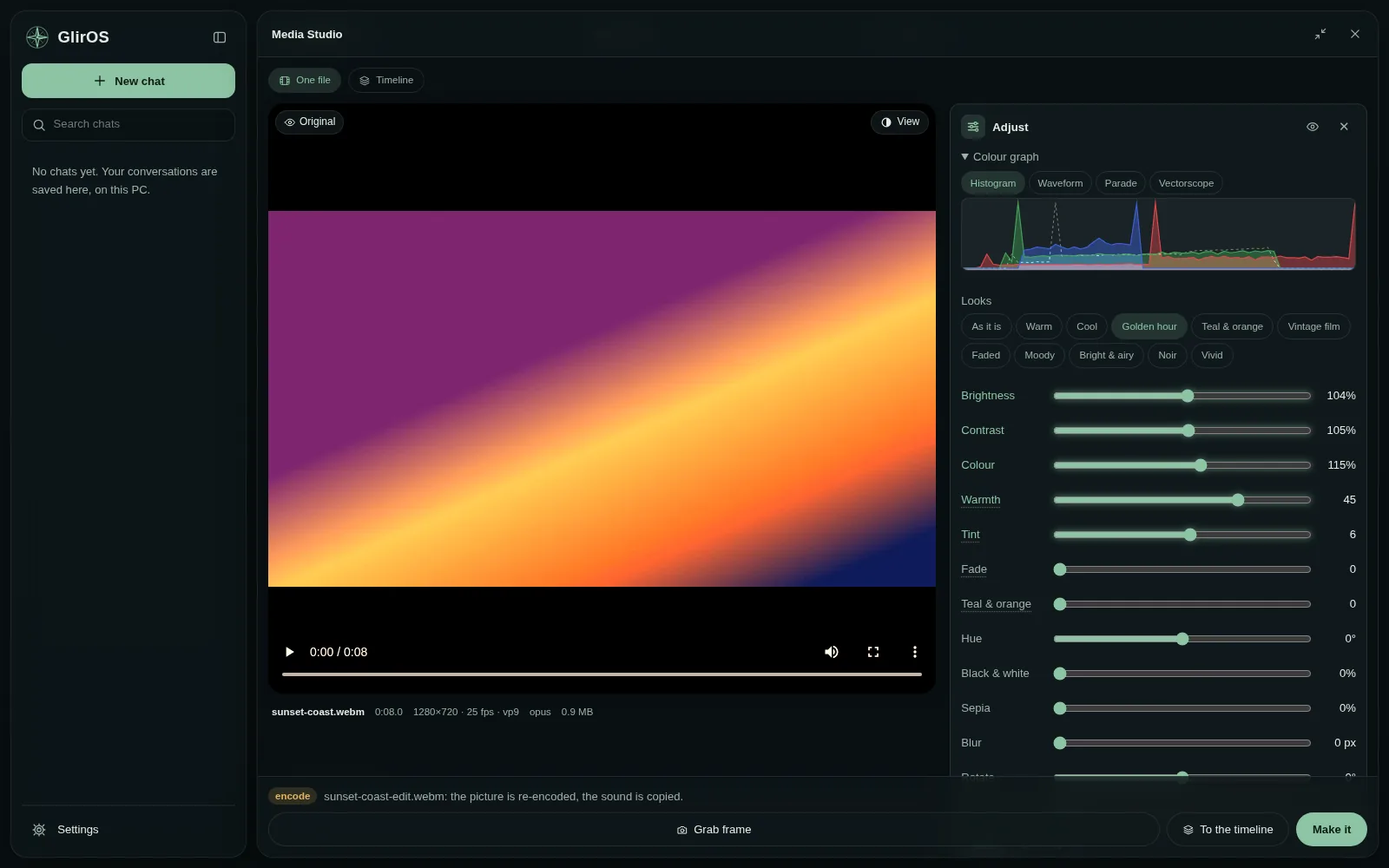
Brightness, contrast, warmth, tint, fade and teal & orange, ten ready looks from Golden hour to Noir, and a colour graph (histogram, waveform, parade or vectorscope) that moves with every slider. Crop to 9:16 and more, or let the crop follow the main person (with the face finder add-on). Or say “give it a golden hour look” and watch the sliders move.
Effect text and effects
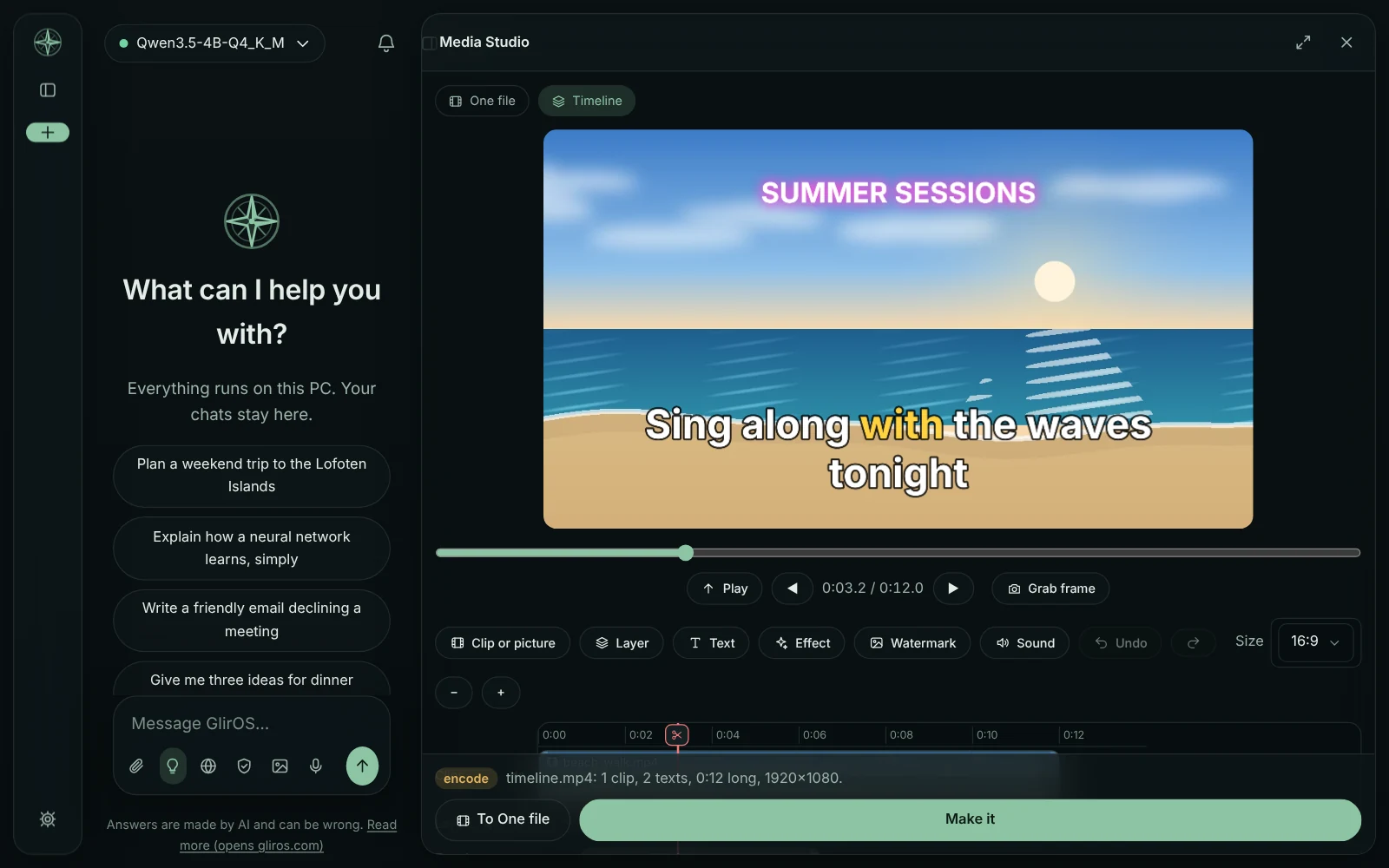
Karaoke text that marks the word being said, neon, bounce, shake and wave, from your own words or from subtitles. Fades, black and white, sepia, blur, a vignette or a slow zoom over any stretch of time.
Green screen and sound
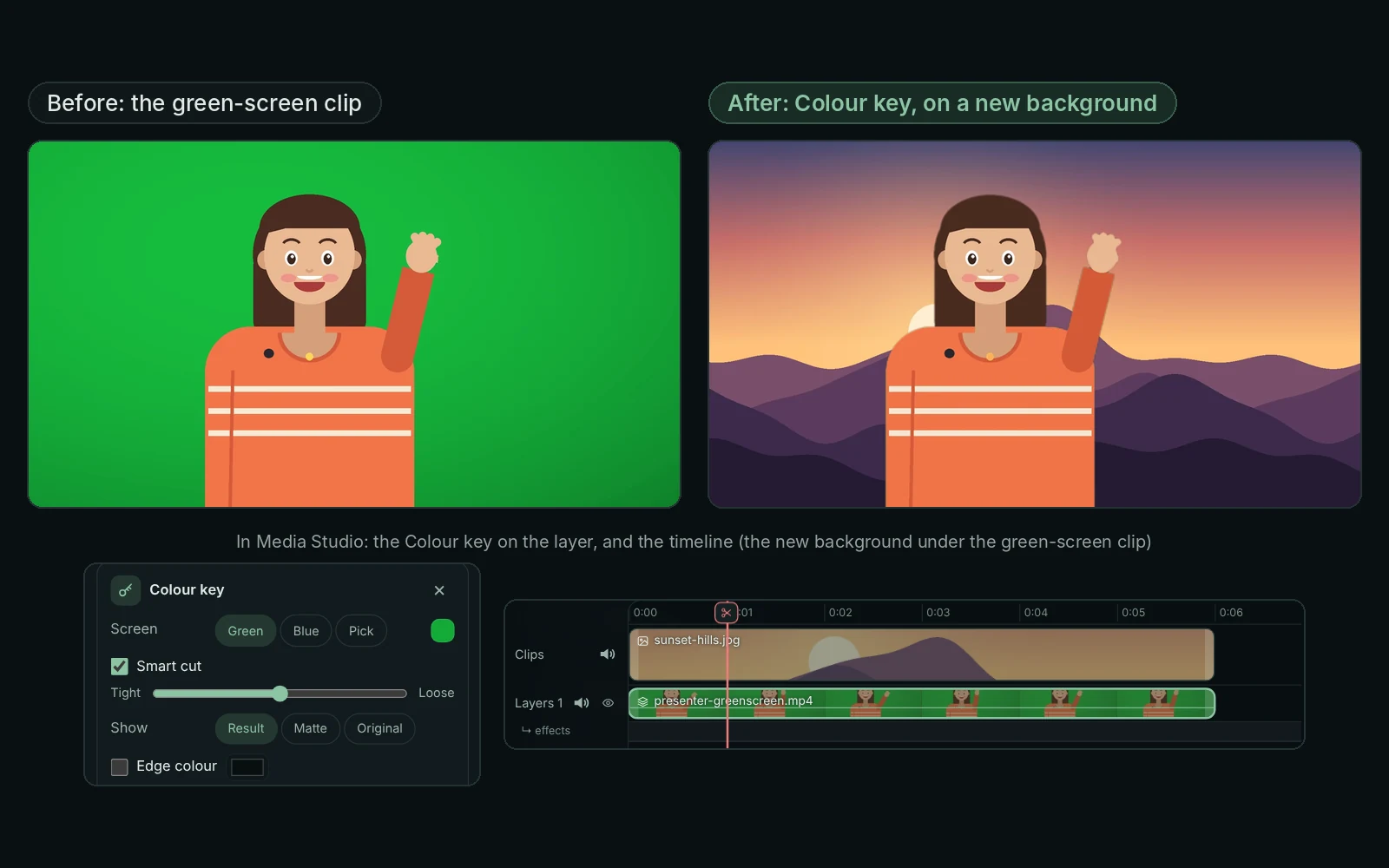
A colour key takes out a green or blue screen, on any clip or layer. Every clip keeps its own sound, with volume, mute and fades, and its waveform on the timeline; the sound is mixed into one.
Long jobs, under control
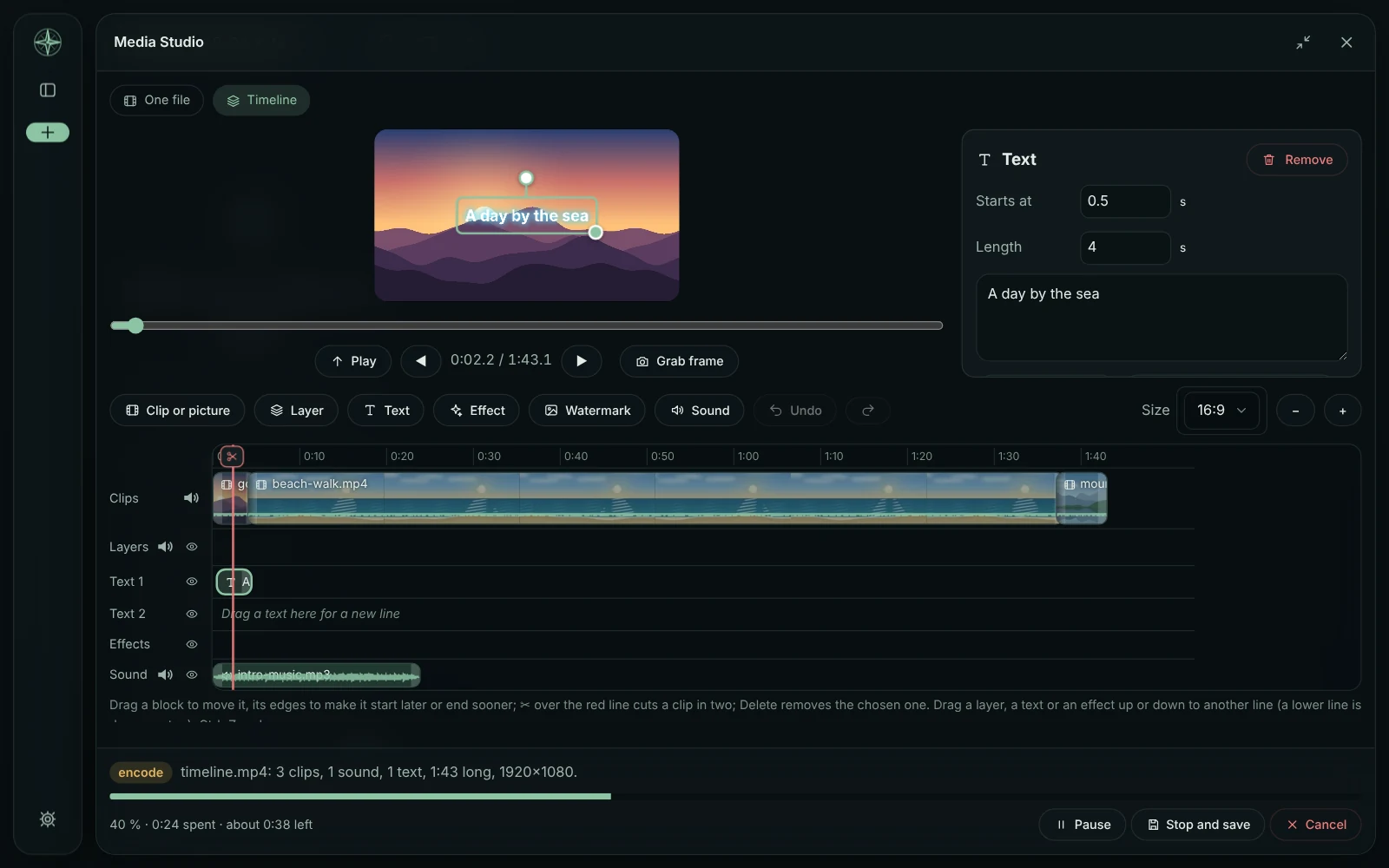
A long job shows the percent, the time spent and about how long is left, with Pause, Stop and save (keeps what is made so far) and Cancel. In the desktop app the taskbar button shows the progress while GlirOS is minimized.
AI add-ons in the desktop app
Optional models in Settings > Tools > AI add-ons (desktop app): the AI upscaler, the AI face enhancer, CodeFormer for more natural faces, and the face finder for a crop that follows a person, among others. Each has its own download and switch, with its licence shown first. They run on your PC, on the graphics card when it can, and nothing is sent anywhere. When an add-on is off, GlirOS says so and uses ffmpeg's own scaler.
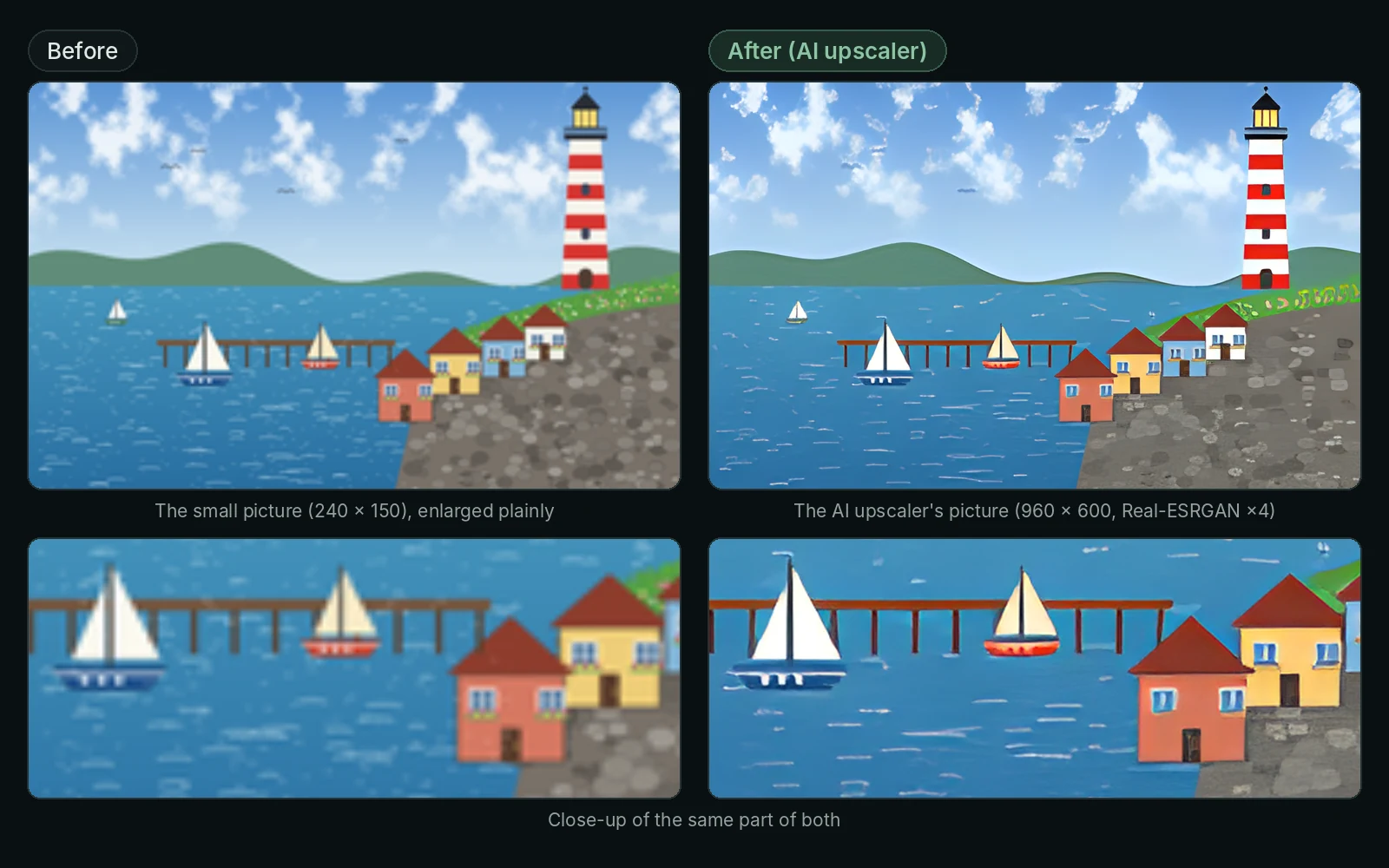
AI upscaler
Makes pictures and video bigger with real detail (Real-ESRGAN). Ask “upscale it 2× with AI”.
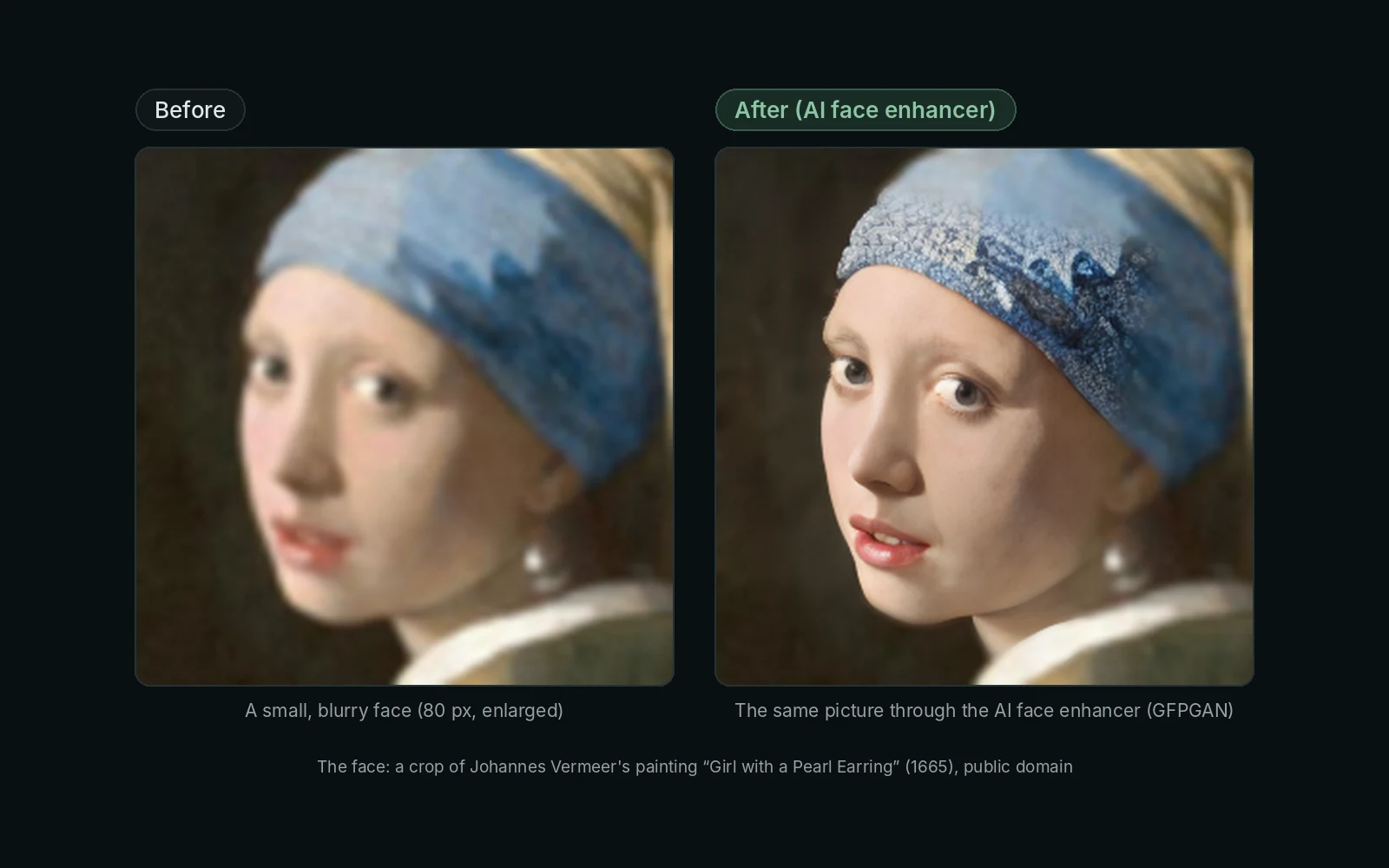
AI face enhancer
Restores faces in pictures and video: sharper eyes, skin and hair (GFPGAN). Ask “enhance the faces”.
Desktop app or browser
The desktop app uses ffmpeg for every format and big files, with the graphics card's encoders and a quality setting for each. The web version does the common formats in the browser itself.
Done on your device
Media jobs run on your own device, and the results are kept in the chat. Only if you ask a cloud model to look at a frame does that picture go to that company, and GlirOS asks first.